This article covers everything you need to know about Bluetooth for the CompTIA A+ Core 1 exam. You will learn how to enable Bluetooth, pair devices, work with PIN codes, and verify that connections are working properly.
What is Bluetooth?
Bluetooth is a short-range wireless technology that allows devices to communicate with each other without cables. It operates in the 2.4 GHz frequency band and is designed for low power consumption, making it ideal for mobile devices and accessories.
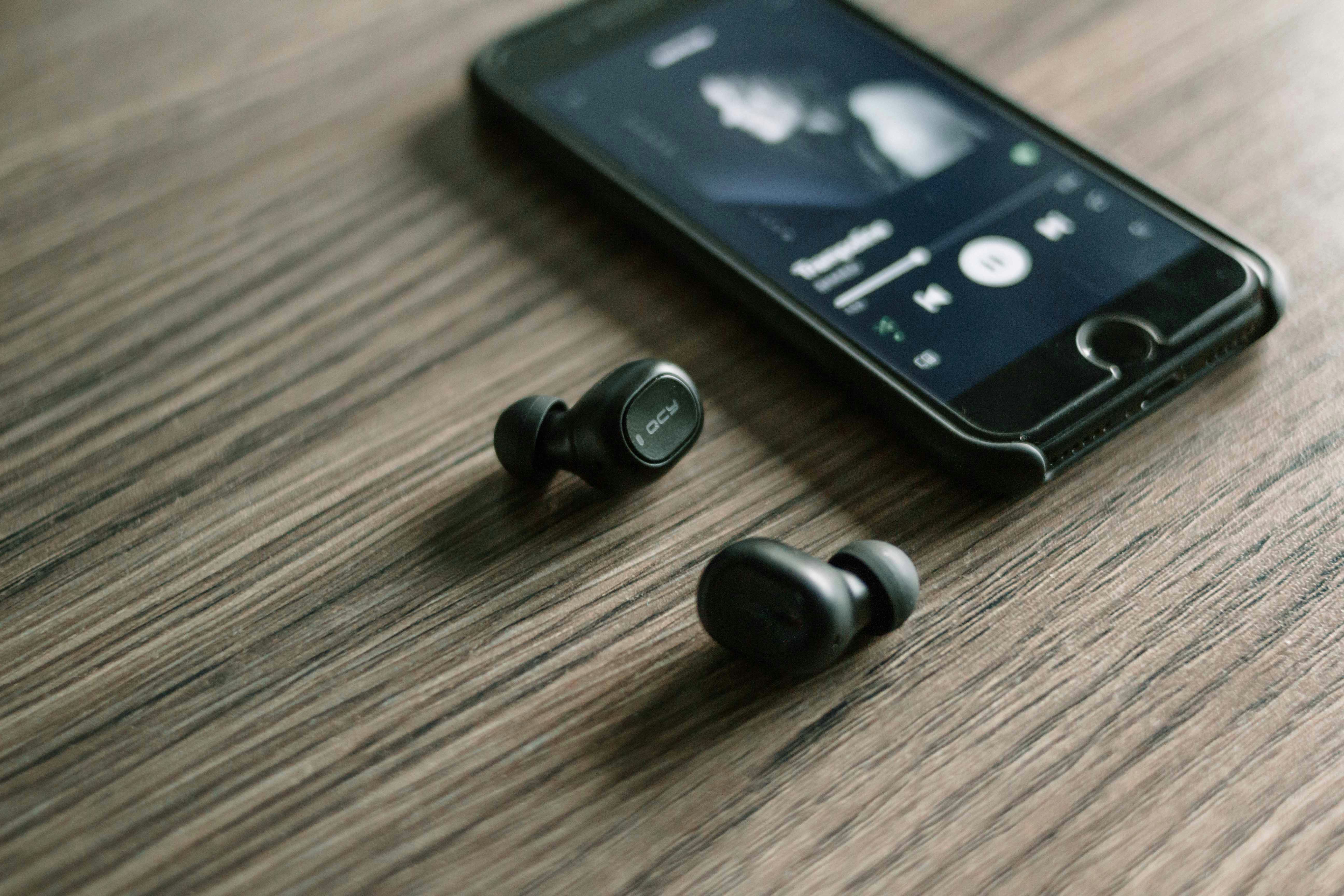
Common Bluetooth Uses
- Wireless headphones and earbuds
- Keyboards and mice
- Speakers
- Smartwatches and fitness trackers
- Hands-free calling in vehicles
- File transfers between devices
- Wireless game controllers
- Medical devices
- IoT sensors and smart home devices
Bluetooth Versions to Know
Bluetooth 4.0 (Bluetooth Low Energy/BLE)
- Introduced low energy mode for battery-powered devices
- Range: Approximately 50 meters
Bluetooth 5.0
- Doubled the speed of BLE
- Quadrupled the range (up to 200 meters in ideal conditions)
- Increased broadcast capacity for IoT applications
Bluetooth 5.2 and newer
- Improved audio quality with LE Audio
- Better support for hearing aids and audio sharing
Enable Bluetooth
Before you can connect any Bluetooth device, the Bluetooth radio on your device must be turned on. Here is how to enable Bluetooth on common platforms.
Windows 10/11
Method 1 - Quick Settings:
- Click the network/sound/battery icons in the system tray (bottom right)
- Click the Bluetooth tile to toggle it on
- The tile will be highlighted when Bluetooth is enabled
Method 2 - Settings App:
- Open Settings (Windows key + I)
.jpeg?token=eyJraWQiOiJzdG9yYWdlLXVybC1zaWduaW5nLWtleV8xZjYxYWU5YS02YzVkLTRjZDktOGY4Mi0xMTAzMDc2N2E4YTIiLCJhbGciOiJIUzI1NiJ9.eyJ1cmwiOiJJbWFnZXMgMi9HZW5lcmF0ZWQgSW1hZ2UgRGVjZW1iZXIgMDksIDIwMjUgLSAxXzQ3UE0gKDQpLmpwZWciLCJpYXQiOjE3NjUzMTAxNDgsImV4cCI6MzM0MjExMDE0OH0.f63mIPoFdvgc5zeAyqTU5Yqt7-073bDnmaomn_-iL7E)
- Go to Bluetooth & devices (Windows 11) or Devices then Bluetooth (Windows 10)
.jpeg?token=eyJraWQiOiJzdG9yYWdlLXVybC1zaWduaW5nLWtleV8xZjYxYWU5YS02YzVkLTRjZDktOGY4Mi0xMTAzMDc2N2E4YTIiLCJhbGciOiJIUzI1NiJ9.eyJ1cmwiOiJJbWFnZXMgMi9HZW5lcmF0ZWQgSW1hZ2UgRGVjZW1iZXIgMDksIDIwMjUgLSAxXzQ3UE0gKDEpLmpwZWciLCJpYXQiOjE3NjUzMTAyMzEsImV4cCI6MzM0MjExMDIzMX0.DnhcvpxmaNqP8nWBGtxrhxktdfNRFJ2PgevGhjDRofw)
- Toggle the Bluetooth switch to On
.jpeg?token=eyJraWQiOiJzdG9yYWdlLXVybC1zaWduaW5nLWtleV8xZjYxYWU5YS02YzVkLTRjZDktOGY4Mi0xMTAzMDc2N2E4YTIiLCJhbGciOiJIUzI1NiJ9.eyJ1cmwiOiJJbWFnZXMgMi9HZW5lcmF0ZWQgSW1hZ2UgRGVjZW1iZXIgMDksIDIwMjUgLSAxXzQ3UE0gKDMpLmpwZWciLCJpYXQiOjE3NjUzMTAyNTIsImV4cCI6MzM0MjExMDI1Mn0.3Rw8HlRvblZyuY74ZGpKP77JBTTKJ6VffZKkS-yxEa8)
Method 3 - Action Center:
- Press Windows key + A to open Action Center
- Click the Bluetooth quick action button
macOS
Method 1 - Menu Bar:
- Click the Bluetooth icon in the menu bar
- Select Turn Bluetooth On
Method 2 - System Settings:
- Open System Settings (or System Preferences on older versions)
- Click Bluetooth
- Toggle Bluetooth to On
Android
Method 1 - Quick Settings:
- Swipe down from the top of the screen
- Tap the Bluetooth icon to enable it
Method 2 - Settings:
- Open Settings
- Tap Connected devices or Connections
- Tap Bluetooth and toggle it On
iOS/iPadOS
Method 1 - Control Center:
- Swipe down from the top-right corner (or up from bottom on older iPhones)
- Tap the Bluetooth icon to enable it
Method 2 - Settings:
- Open Settings
- Tap Bluetooth
- Toggle Bluetooth to On
Enable Pairing (Discoverable Mode)
For two Bluetooth devices to connect, at least one of them must be in pairing mode, also called discoverable mode. This makes the device visible to other Bluetooth devices searching for connections.
Understanding Pairing Mode
- A device in pairing mode broadcasts its presence so other devices can find it
- For security, devices are usually not discoverable by default
- Pairing mode often has a time limit (typically 1-2 minutes) before it automatically turns off
- Once devices are paired, they remember each other and can reconnect without repeating the pairing process
How to Enable Pairing Mode on Accessories
Different devices enter pairing mode in different ways.