A file share server is a dedicated system that stores files and makes them accessible to multiple users across a network. Rather than storing documents locally on individual computers, organizations centralize files on a server where users can access, edit, and collaborate on shared data. This approach simplifies backup procedures, improves collaboration, and allows administrators to manage permissions from a single location.
Common File Sharing Protocols
Different protocols handle file sharing depending on the operating system and network environment.
SMB (Server Message Block)
SMB is the primary file sharing protocol for Windows networks. Modern Windows systems use SMB 3.0, which includes encryption and improved performance. SMB operates over TCP port 445. When you map a network drive in Windows using a UNC path like \\servername\sharename, you're using SMB.
NFS (Network File System)
NFS is the standard file sharing protocol for Linux and Unix systems. It allows remote directories to be mounted as if they were local storage. NFS is commonly used in data centers and environments with many Linux servers. NFSv4 uses TCP port 2049.
AFP (Apple Filing Protocol)
AFP was Apple's native file sharing protocol for macOS. While older Mac systems still support AFP, Apple has transitioned to SMB as the default protocol for file sharing, improving cross-platform compatibility.
FTP/SFTP
FTP (File Transfer Protocol) transfers files between systems but lacks the seamless integration of SMB or NFS. SFTP (SSH File Transfer Protocol) adds encryption for secure transfers. FTP uses ports 20 and 21, while SFTP uses port 22.
Windows File Sharing
Creating a Share
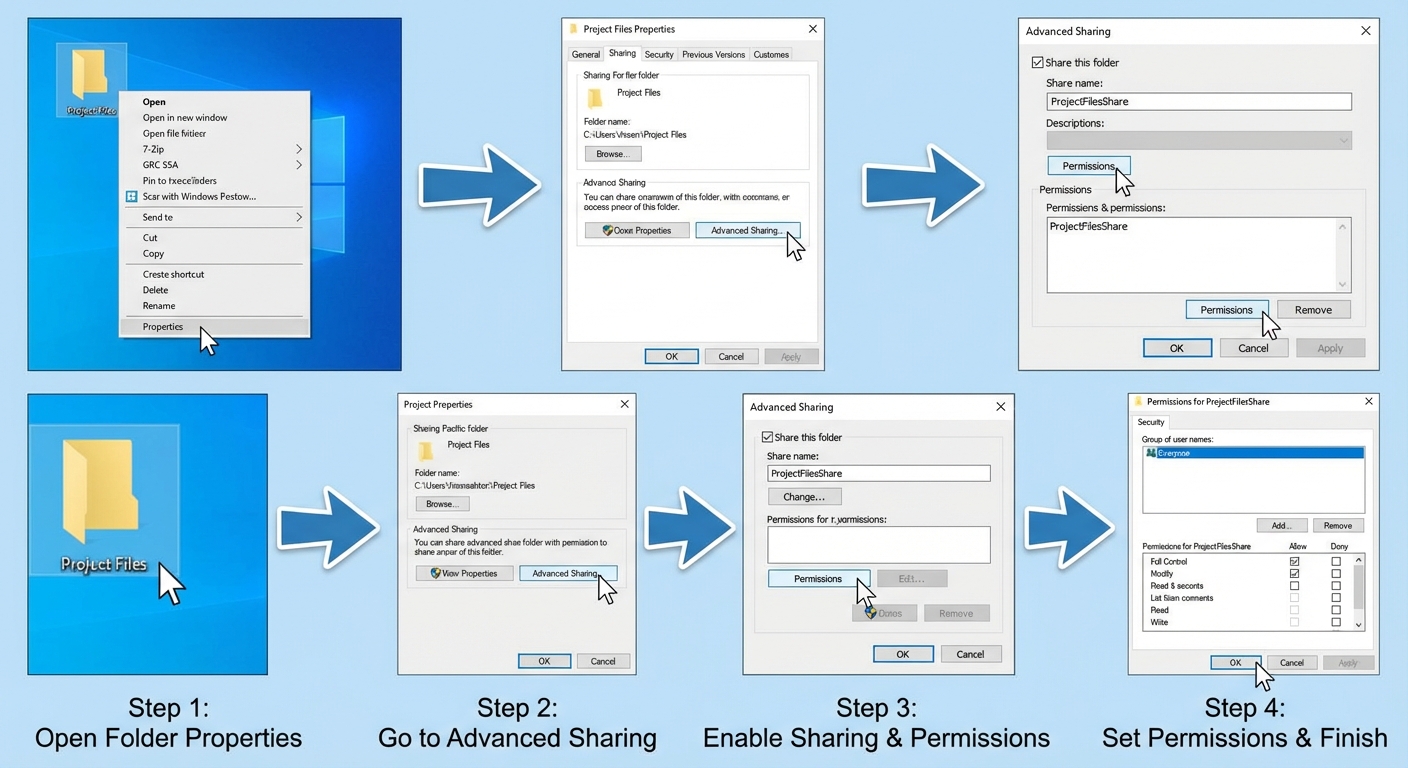
To share a folder in Windows:
- Right-click the folder and select Properties
- Navigate to the Sharing tab
- Click Advanced Sharing
- Check "Share this folder"
- Set the share name and configure permissions
- Click OK to create the share
Share Permissions vs. NTFS Permissions
Windows uses two layers of permissions that work together:
Share Permissions apply only when accessing files over the network. Options include Full Control, Change, and Read. These are simpler but less granular.
NTFS Permissions apply whether accessing files locally or over the network. They offer granular control including Read, Write, Modify, Read & Execute, List Folder Contents, and Full Control.
When both permission types apply, the most restrictive combination wins.