If you support phones at a help desk, you've seen it. A user adds a contact on their laptop, yet it never shows on their phone. Another user hits a data limit and suddenly mail stops updating. CompTIA A+ 1201 Objective 1.3 focuses on these everyday issues: mobile device synchronization, recognizing data caps, and syncing business apps (calendar, contacts, mail, and cloud storage).
This objective expects more than definitions. You need to know what sync is, why it fails, and which settings control it. You also need to spot when a cellular data cap changes device behavior. By the end, you'll know what to check first on both iOS and Android, using the same fast logic you'd use during exam-style troubleshooting.
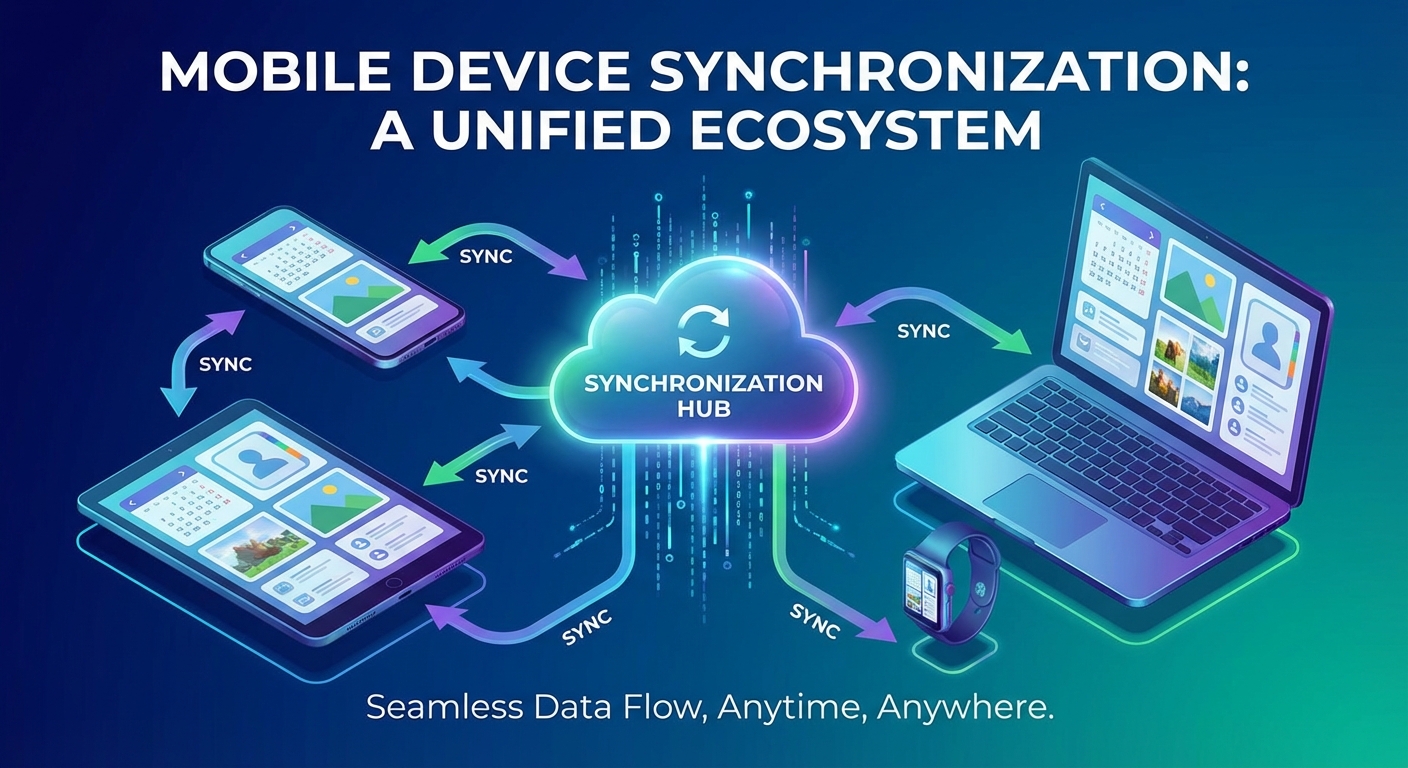
Mobile device synchronization basics you need for Objective 1.3
Synchronization means keeping the same data consistent across two or more places. In practice, it's how a phone stays aligned with a laptop, a tablet, and a work account. Without sync, every device becomes its own island, and users start emailing themselves files like it's 2009.
Two common sync models show up on the A+ exam:
One-way sync moves data in a single direction. For example, a phone might copy photos to a PC over USB, but changes on the PC don't return to the phone.
Two-way sync updates both sides. If you edit a contact on your phone, the server updates, then other devices update too. Most business services use two-way sync because people work from many devices.
The path sync takes also matters. Older setups used USB or Bluetooth for direct transfer. Those still exist, but most business sync now runs through a network connection and an account sign-in. Depending on the app and policy, data may sync over:
- Wi-Fi (often preferred because it's stable and cheaper than cellular)
- Cellular data (fast for small updates, risky for large files)
- Cloud account sync (Microsoft 365, Google Workspace, iCloud)
- Local connections (USB, Bluetooth) for manual transfers or device management tools
In many workplaces, MDM policies (mobile device management) control what can sync and where. An MDM profile can require a passcode, force encryption, restrict personal cloud backups, or block copy and paste. As a result, "sync problems" can be policy blocks, not user error.
A helpful mindset for Objective 1.3: sync is rarely "broken" everywhere. It usually fails on one link, the account, the network path, the device settings, or a security rule.
What actually syncs, and where the data lives
A phone holds a mix of local data and cloud data. Even cloud-based apps keep cached copies, so the user can search mail or view recent files offline. That cache can confuse troubleshooting because the app may look up to date while it's not syncing at all.
Two-way sync also explains a common shock: "I deleted it here and it vanished there." If a contact or calendar event lives in a synced account, deletion syncs just like creation. The system treats it as a real change, not a local preference.
Simple examples match what you'll see at work:
A contact saved on an Android phone syncs to Google Contacts, then appears on the user's Chromebook. A calendar event created in Outlook on a laptop syncs to Exchange, then shows in the phone's Calendar app. In both cases, the account is the hub.
Most phones also have account-level toggles. On iOS, users often control sync under account settings, with switches for Mail, Contacts, Calendars, and sometimes Notes. On Android, the same idea appears under Accounts and per-account sync options. Cloud drives add similar controls inside apps such as OneDrive, Google Drive, or iCloud Drive (including offline access choices).
The most common sync failures and quick checks that fix them
Sync failures tend to cluster around a few causes. First, confirm the basics, then move to the less obvious blocks. The following checks solve a large share of real tickets:
- Wrong password or expired token: re-enter credentials, then approve prompts.
- Account locked: sign in on the web to confirm the account isn't suspended.
- Bad time and date: fix auto time settings, then retry (certs can fail when time is off).
- Airplane mode or no signal: verify Wi-Fi or cellular works in a browser.
- Low storage: free space so caches, attachments, and updates can complete.
- Battery saver enabled: allow background activity for the mail or cloud app.
- Background refresh restricted: enable background data or background app refresh.
- Sync toggles off: confirm Contacts, Calendar, Mail, or Drive sync is enabled.
- Outdated OS or app: update because older builds may fail modern sign-in.
- Certificate prompts: accept trusted certs only when you can verify the source.
- VPN interference: test with VPN off (some tunnels block push services).
Vendor-neutral locations matter for the exam. On Android, start with Settings, then Accounts, then account sync. On iOS, start with Settings, then account settings inside the Mail or Calendar area. After that, check the app's own sync controls (Outlook, Gmail, Teams, OneDrive, Google Drive) because apps can pause sync even when the OS allows it.
Recognizing data caps and stopping surprise mobile data use
A data cap is a carrier limit on how much cellular data a line can use in a billing cycle. After the limit, the carrier may throttle speed, charge overage fees, or stop high-speed data until the next cycle. For Objective 1.3, the key skill is linking symptoms to the cap, then applying settings that reduce data use.
Sync can burn data quickly because it runs in the background and often repeats across devices. Mail attachments download, photos upload, and cloud storage apps refresh files. Even app updates can trigger large downloads. If a user travels, roaming can make it worse because roaming data may cost more or follow different rules than normal cellular use.
A good troubleshooting habit is to separate two questions:
First, is the device failing to sync because the network is slow or blocked? Next, is the device protecting the user from high data use by pausing background sync?
Signs a data cap is the real problem
Some signals point to the carrier, not the app.