A print server is a device or software that manages print jobs and distributes them to one or more printers on a network. Instead of connecting a printer directly to a single workstation, a print server allows multiple users to share printers across the network. This centralized approach reduces hardware costs, simplifies management, and gives administrators control over print queues and user access.
Print servers can be dedicated hardware devices, software running on a Windows or Linux server, or functionality built into network-capable printers themselves.
How Network Printing Works
When a user prints a document on a network, the following process occurs:
- The application sends the print job to the local print spooler
- The spooler forwards the job to the print server
- The print server adds the job to the printer's queue
- The print server sends the job to the printer when ready
- The printer renders and prints the document
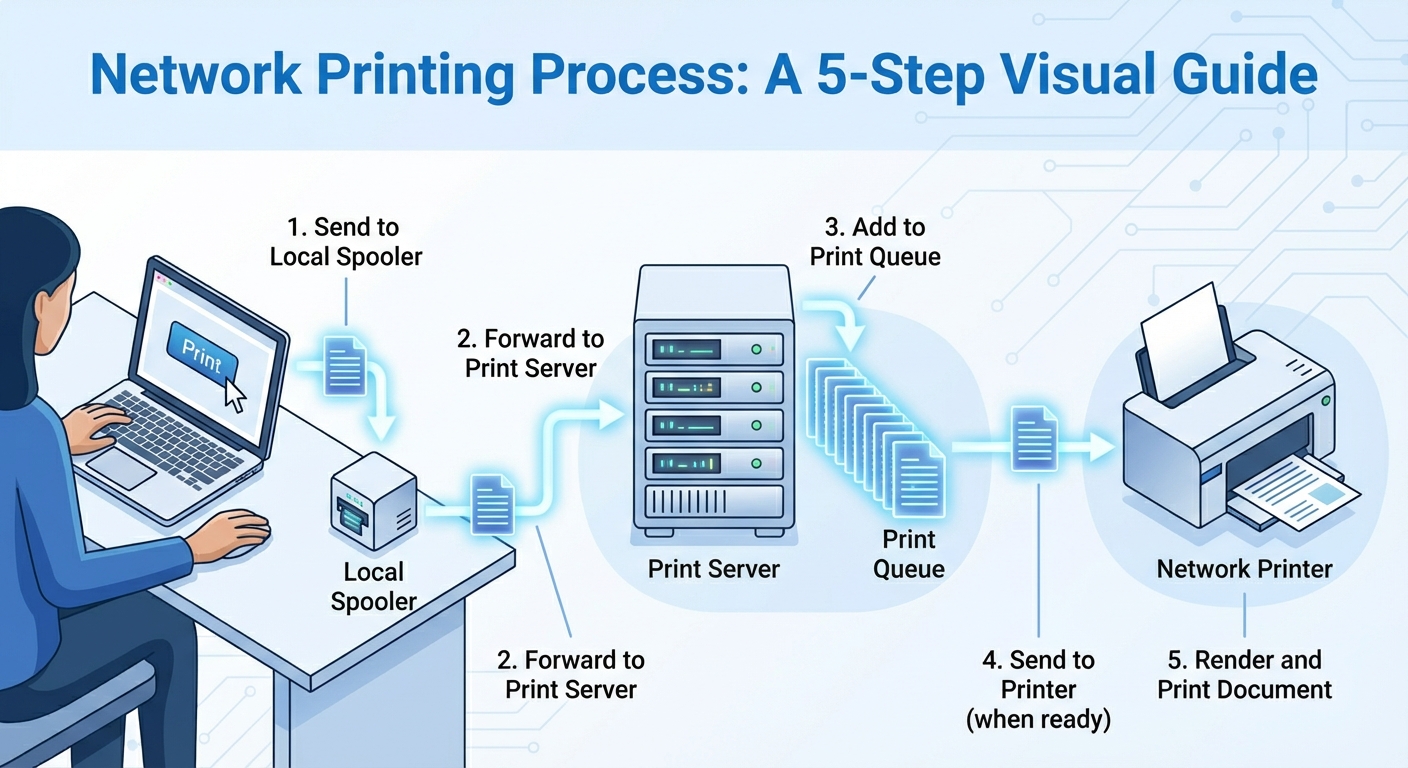
The print spooler is a service that manages print jobs in a queue, allowing users to continue working while documents print in the background. On Windows, the Print Spooler service handles this function.
Printing Protocols and Ports
Several protocols enable network printing, each suited to different environments.
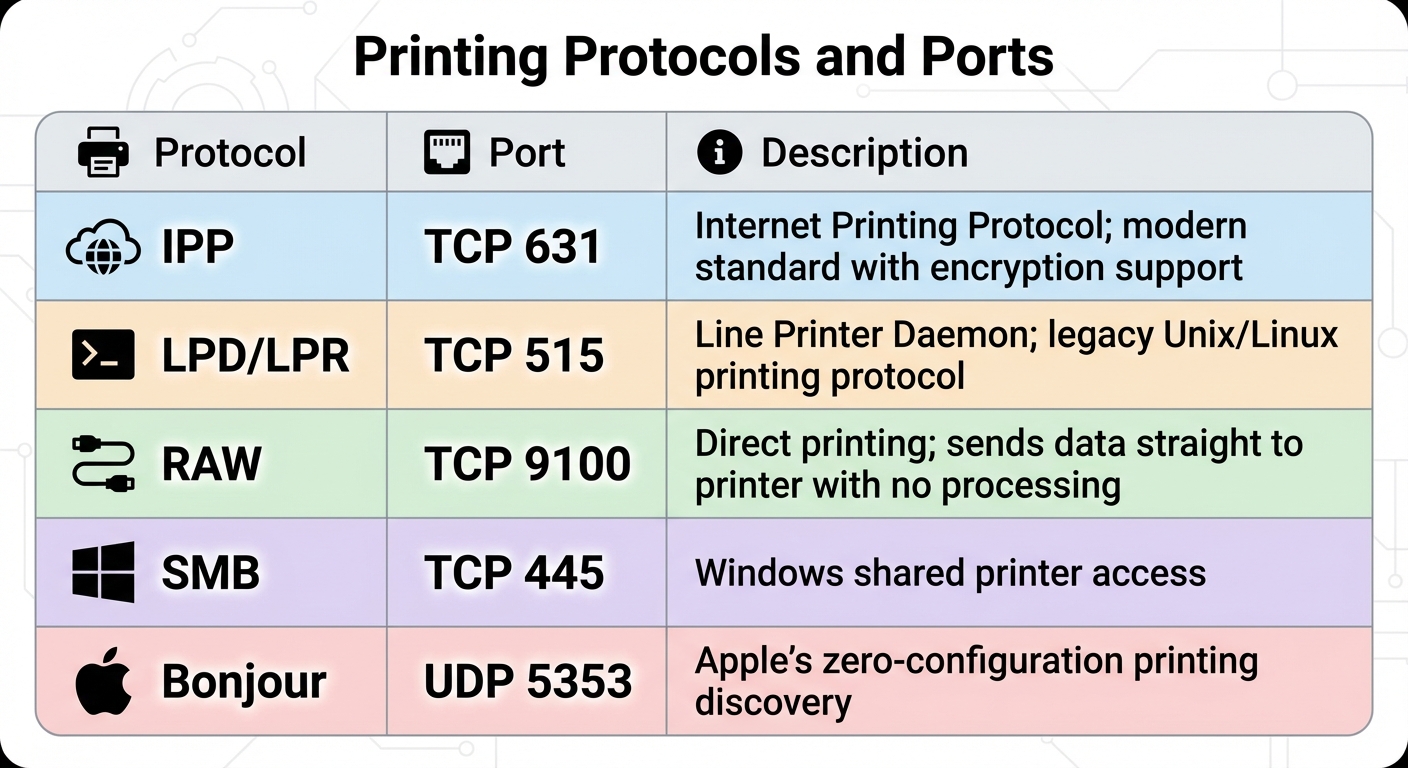
RAW printing on port 9100 is the most common method for network printers. It offers fast, direct communication with minimal overhead.
IPP (Internet Printing Protocol) is becoming the modern standard, supporting features like encryption, authentication, and detailed job status reporting.
Windows Print Server Configuration
Installing the Print Server Role
Windows Server includes a Print and Document Services role that provides centralized print management:
- Open Server Manager
- Add the Print and Document Services role
- Include the Print Server role service
- Complete the installation wizard
Sharing a Printer
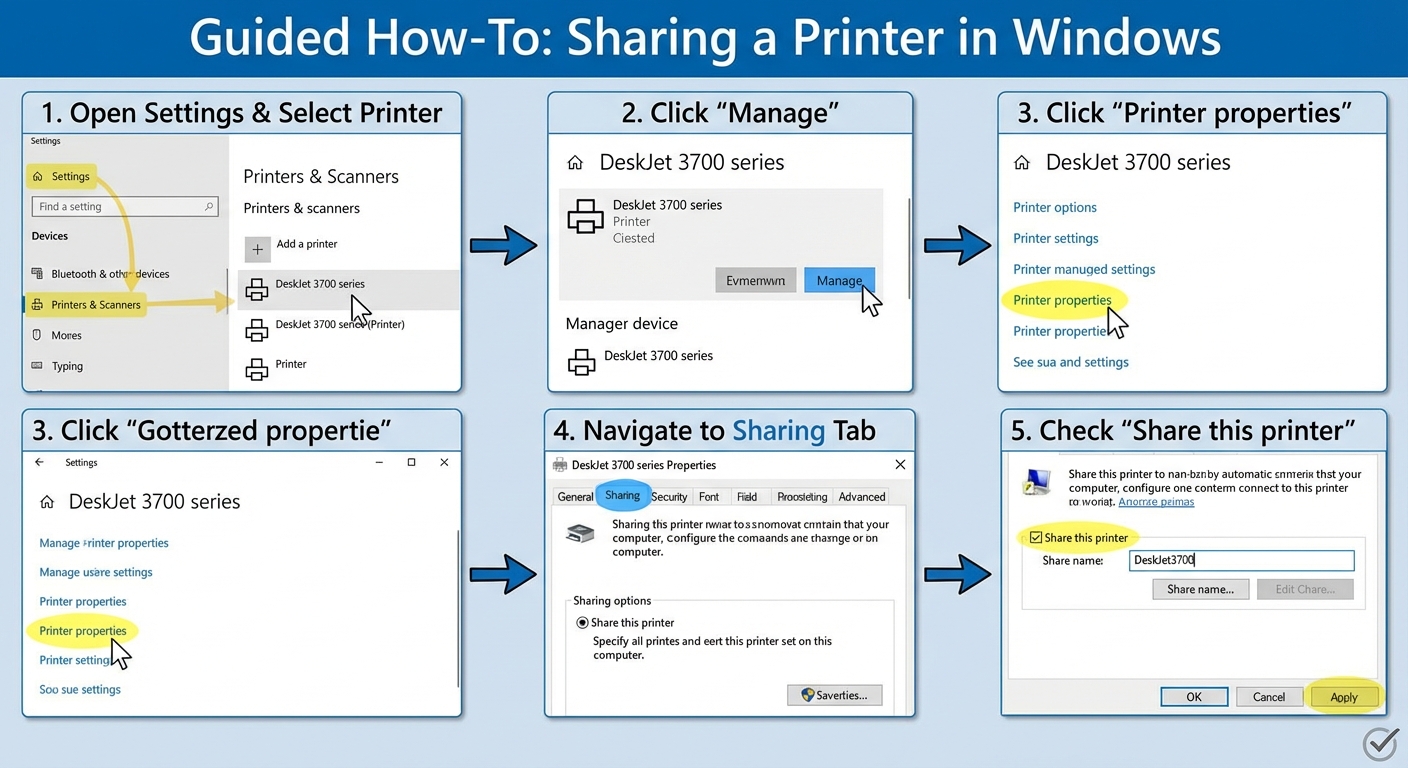
To share a printer in Windows:
- Open Settings and navigate to Printers & Scanners
- Select the printer and click Manage
- Click Printer Properties
- Navigate to the Sharing tab
- Check "Share this printer"
- Assign a share name
- Optionally install additional drivers for different Windows versions
Connecting to a Shared Printer
Users can connect to shared printers several ways:
UNC Path: Enter \\servername\printername in File Explorer or the Run dialog
Add Printer Wizard: Browse the network or enter the printer path directly
Group Policy: Administrators can deploy printers automatically to users or computers based on organizational unit membership
Print Drivers
Print drivers translate documents into a format the printer understands. Proper driver management is essential for reliable printing.
Driver Types
Type 3 (User Mode): Runs in user space; a crash affects only the application, not the system. More stable but being phased out.
Type 4 (v4): Modern driver architecture introduced in Windows 8.