In the modern computing landscape, the line between input and output devices has blurred. The CompTIA A+ Core 1 (220-1201) exam requires a deep understanding of hardware components, and among the most critical interactive components are touch screens and digitizers. These components turn a static visual display into an interactive surface, found in devices ranging from smartphones and tablets to laptops, all-in-one desktops, and point-of-sale (POS) systems.
For an IT technician, understanding how touch screens interface with computer hardware is essential. This knowledge forms the foundation for diagnosing input failures, performing physical repairs, and configuring operating system settings. This article covers the engineering principles of digitizers, how they integrate with display assemblies, common failure points, and the troubleshooting steps required to resolve touch-related issues.
Understanding Touch Screen and Digitizer Technology
To understand how touch screens function, it is necessary to separate the display component from the input component. The display panel (typically an LCD or OLED) is strictly an output device. The digitizer is a clear, thin layer of plastic or glass placed directly over the display panel that functions as an analog-to-digital converter. It detects physical touch, translates that physical location into X and Y coordinates, and sends those coordinates to the processor as input data.
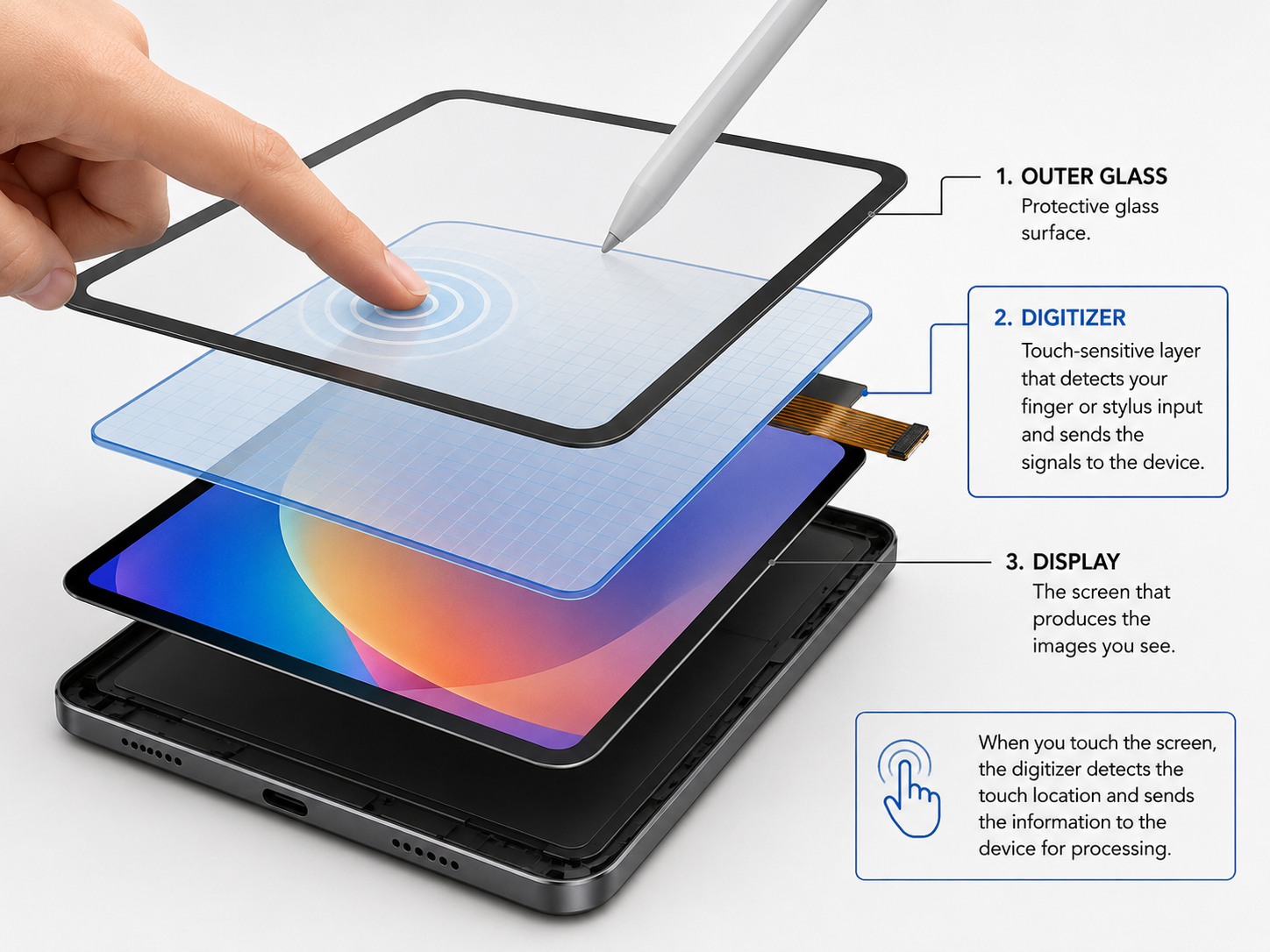
Modern computing systems use two primary classes of digitizer technology: resistive and capacitive.
Capacitive Touch Screens
Most consumer electronics, including smartphones, tablets, and modern laptops, use capacitive touch screens. This technology relies on the electrical properties of the human body.
- How it works: A micro-thin, transparent layer of conductive material (usually Indium Tin Oxide) is applied to a glass panel. A small electrical charge is distributed across this grid. When a conductive object—such as a human finger—touches the screen, it alters the local electrostatic field, causing a measurable drop in capacitance.
- Characteristics: Capacitive screens are highly responsive, support multi-touch gestures (such as pinching to zoom), and offer excellent optical clarity. However, they generally do not respond to non-conductive inputs like fingernails, standard plastic styluses, or gloved hands.
Resistive Touch Screens
Older systems, medical devices, and industrial or outdoor POS terminals often use resistive touch screens.
- How it works: A resistive system consists of two flexible, transparent layers separated by a thin gap of air or microscopic spacer dots. One layer is resistive, and the other is conductive. When pressure is applied to the outer screen, the flexible outer layer bends and physically touches the inner layer. This completes an electrical circuit at that precise point.
- Characteristics: Resistive screens are pressure-sensitive. This means they can be operated with almost any object, including gloved fingers, plastic styluses, or fingernails. They are highly durable and resistant to water and dust. However, they do not typically support multi-touch, have lower optical clarity due to the multiple layers, and require physical force to register an input.
Active styluses, such as those used for digital art and note-taking on tablets, often use a specialized digitizer layer embedded in the display called an electromagnetic resonance (EMR) sensor. This works independently of the finger-touch capacitive grid to provide pressure sensitivity and palm rejection.
Component Integration and Architecture
Inside a laptop or mobile device, the digitizer connects to the system motherboard using a dedicated data path. Because it is an input device, the system BIOS/UEFI and the operating system treat the digitizer as a pointing device, similar to a mouse or trackpad.
Hardware Connections
The digitizer assembly requires both physical mounting and electrical connectivity:
- Internal USB interface: In most modern laptops, the touch digitizer communicates with the motherboard via an internal USB protocol channel routed through the display hinge.
- Flex ribbon cables: Extremely thin, flat flex cables connect the digitizer glass to a control board, which then connects to the system motherboard. If this cable becomes slightly unseated due to physical drops or vibration, touch functionality can fail entirely or intermittently.
Display Bonding Methods
The relationship between the digitizer glass and the underlying LCD panel depends on how the manufacturer constructed the display:
- Non-bonded (layered) displays: The outer glass/digitizer is a separate physical component from the LCD panel. If the outer glass cracks but the display still functions, you can replace only the glass/digitizer layer.